Complete Display Settings Guide
TickPace gives you powerful layout controls—window layers, visual themes, grouping, and typography—so every timer fits both your desktop and your workflow.
Window Layer Modes
Choose the perfect layer for each timer window and switch on the fly:
- Desktop mode: Pins the timer to the desktop background for long-term goals.
- Always on top: Floats above every window so critical reminders never hide.
- Standard window: Behaves like any app window for everyday tasks.
Select the preferred layer inside the timer settings. Changes apply instantly.
Layer Settings & Preview
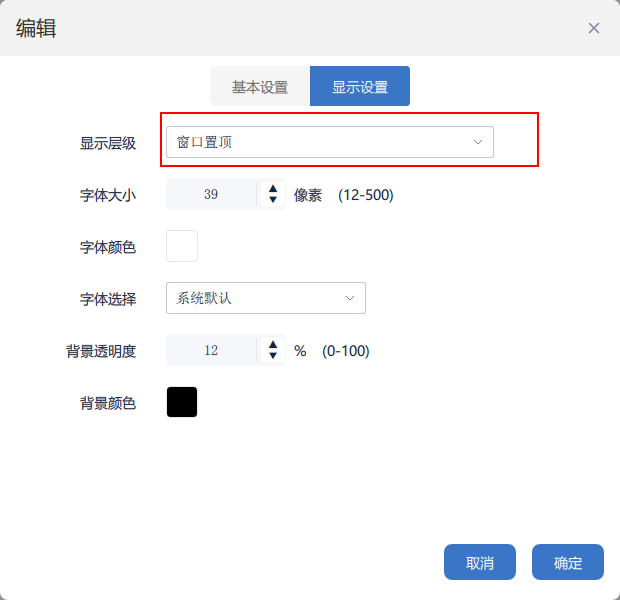
Desktop layer configuration
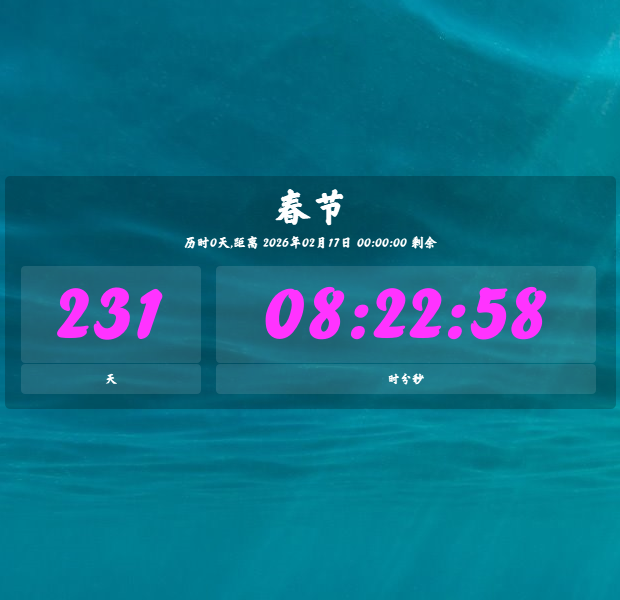
Desktop layer in action
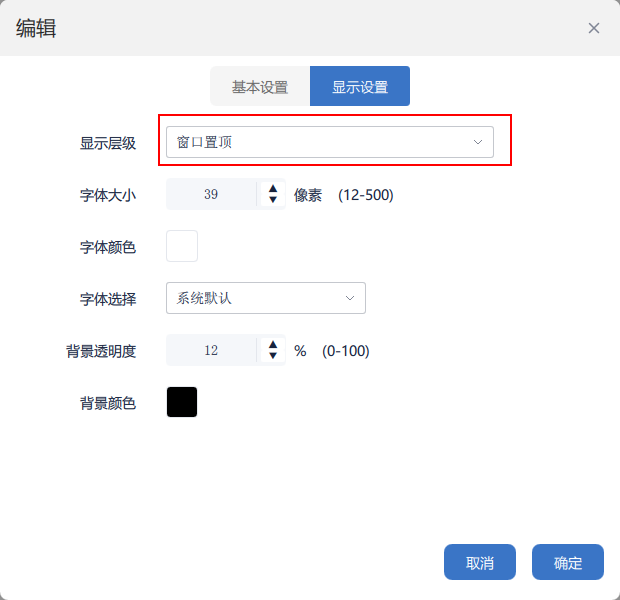
Always-on-top options
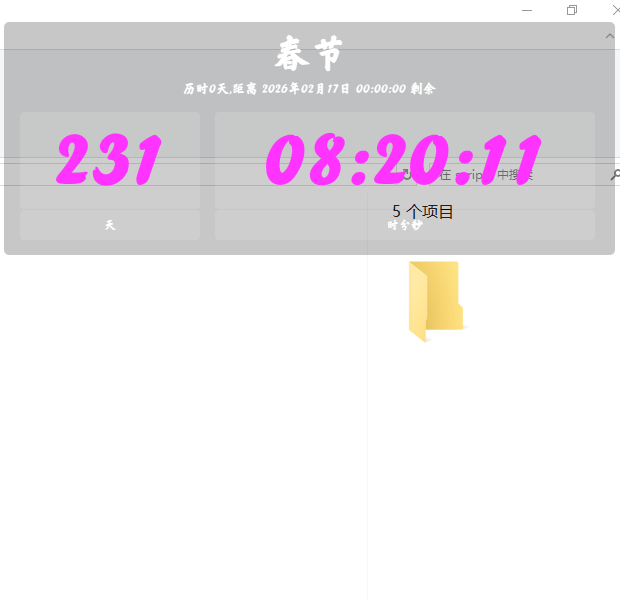
Always-on-top timer view
Choose “Always on top” to keep the countdown above every other window.
Typography & Color Controls
Fine-tune how every timer looks:
- Font size: Adjustable from 12–500 px for any screen or distance.
- Font color: Pick any color—high contrast combinations boost readability.
- Font family: Use system fonts or import your own to build a unique style.
Adjust the controls inside the settings panel and preview the result instantly.
Typography Settings & Preview
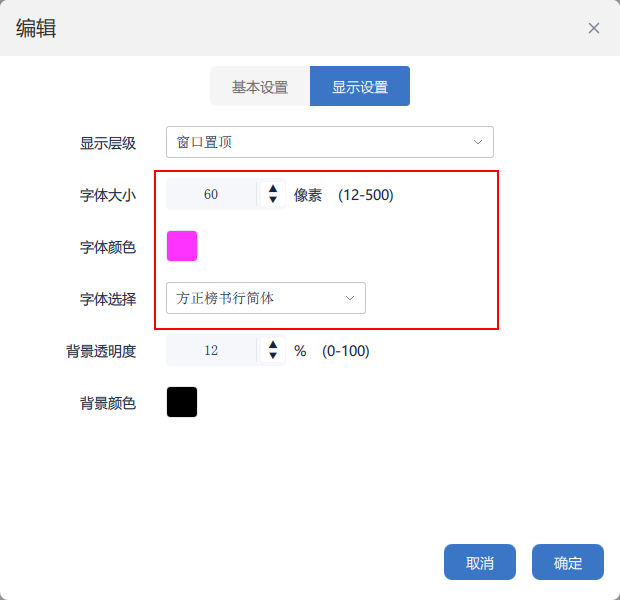
Font size, color, and family controls
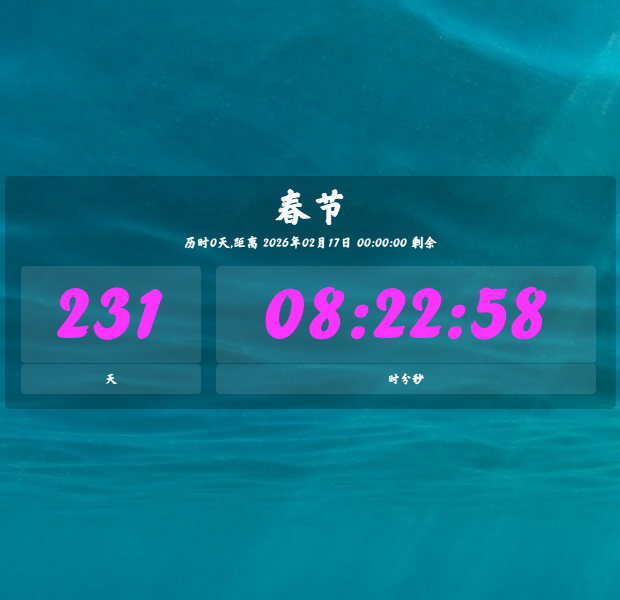
Resulting desktop display
Large fonts and vibrant colors make timers visible across a room.
Background Color & Transparency
Blend timers seamlessly into any wallpaper:
- Background color: Pick any palette to match your environment.
- Transparency: Slide from 0–100% to balance aesthetics and clarity.
Use the background controls to keep timers visible without covering the rest of your desktop.
Background Settings & Preview
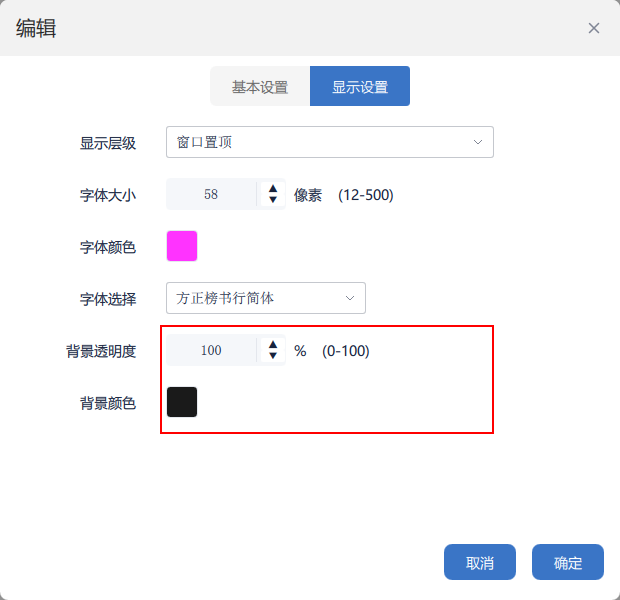
Color and transparency controls
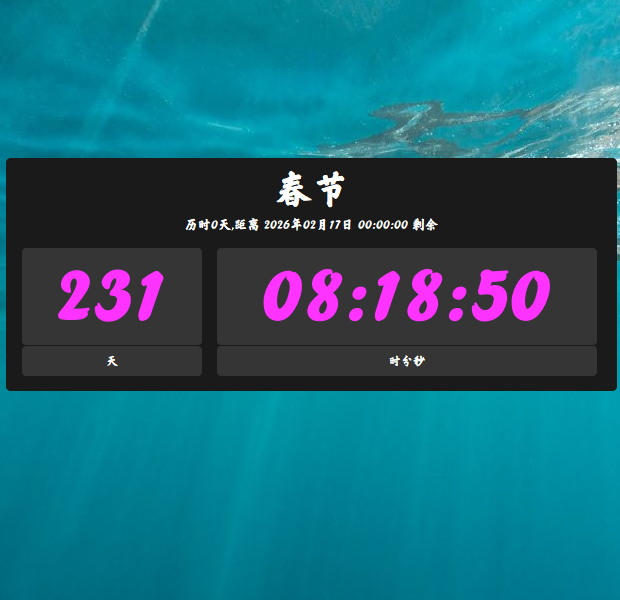
Desktop preview with adjusted background
Increase transparency to keep information visible without blocking your wallpaper.